
Your Phone's Privacy Settings: The Ones Worth Changing Today

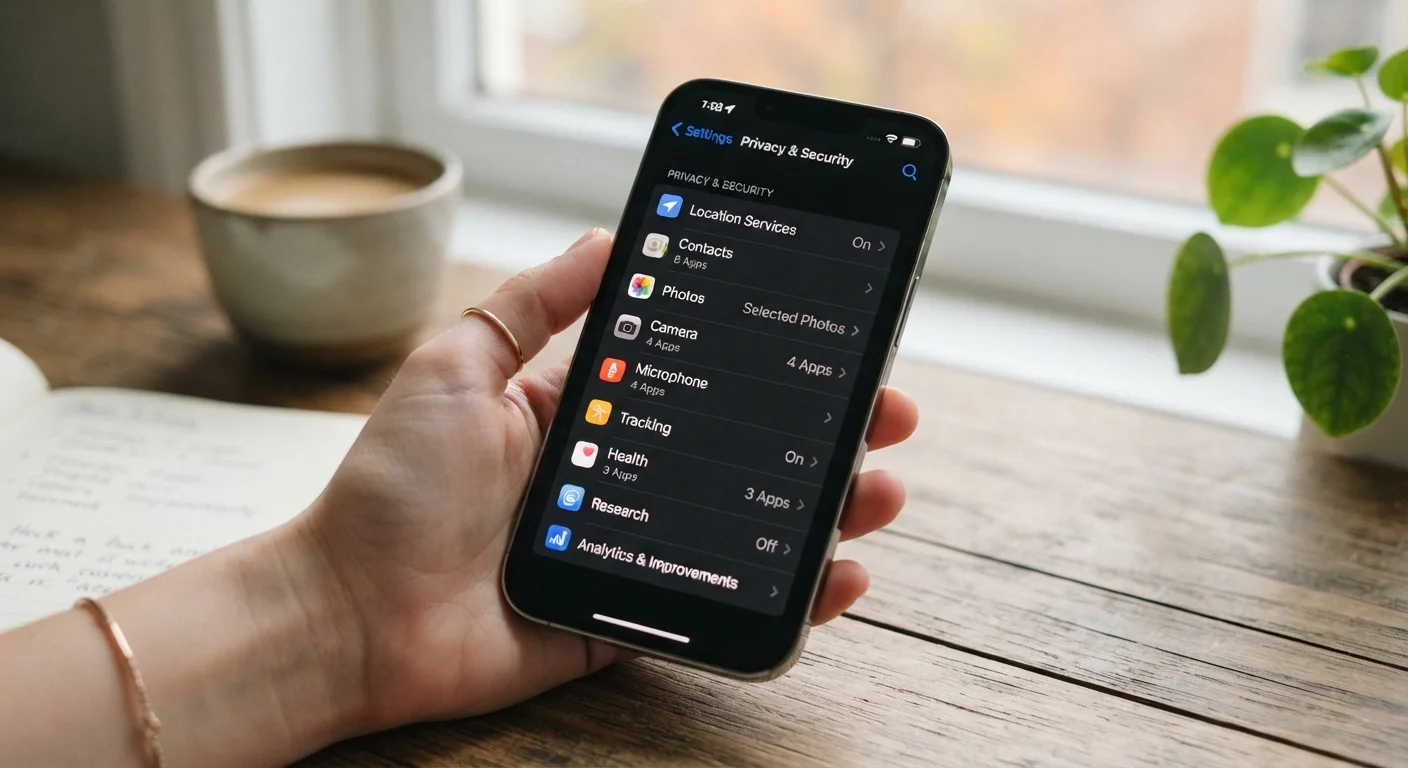
A plain-language walkthrough of the smartphone settings that have the biggest impact on how much data apps can collect about you.
Summary
18 items · 20 to 45 minutes
Key takeaways
- Location access is one of the highest-impact permissions to review, and most apps do not need it running continuously.
- Ad tracking identifiers on both Android and iPhone can be limited or reset without affecting core phone functions.
- App permissions for the camera, microphone, and contacts should be granted only to apps with a clear reason to need them.
- Locking your lock screen notifications prevents sensitive information from appearing before you unlock your phone.
- These changes take less than an hour and do not require technical knowledge to complete.
Why these settings matter
Your phone is a collection of sensors: GPS, microphone, camera, contact list, calendar. Apps request access to these sensors, and many collect far more than they need to function. That data can be used for ad targeting, sold to data brokers, or exposed in a breach.
The good news is that you do not need to understand how data brokers work or what ad networks do to protect yourself. You just need to know which settings to change. This checklist covers the permissions and switches that have the most impact on how much your phone shares about you, without requiring any technical background.
Work through each group at your own pace. The items marked "must" are the highest priority. The ones marked "should" are worth doing for most people. Anything labeled "nice to have" is optional and depends on your personal comfort level.
Revoking permissions can break app features
When you remove location, camera, or microphone access from an app, that part of the app will stop working. For example, revoking location from a map app means turn-by-turn navigation will not function. Go through the list thoughtfully, and re-grant access to an app if you find you genuinely need that feature.
What you will need and how to use this checklist
You need only your phone and a few minutes per section. The checklist is organized by category so you can work through one group, put the phone down, and return later.
Your phone's built-in Settings app
The only tool required to complete this checklist. All permission and privacy controls live here.
A VPN app
Encrypts your internet traffic when using public Wi-Fi networks, reducing exposure to network-level snooping.
The instructions reference both iPhone and Android where the steps differ. If a path does not match your screen exactly, use the search function inside your Settings app and type the setting name directly.
Some settings vary by Android manufacturer
Android is customized differently by manufacturers such as Samsung, Google, and others, so menu names and locations may not match exactly. If a setting described here is not where you expect it, search for it by name in your Settings app's search bar. The underlying options are almost always present, just sometimes labeled or nested differently.
The privacy settings checklist
Work through each group below. Tapping through the settings for the first time takes the most effort. After that, a quick review every few months, especially after installing new apps, is enough to stay on top of things.
Location access
Ad tracking and personalization
Camera, microphone, and contacts
Lock screen and notifications
App data and diagnostics
Network and connectivity
After you finish
Once you have gone through the list, the main habit worth building is checking permissions after you install any new app. Most apps prompt for permissions immediately on first launch, often before you have had a chance to decide whether you even want to use the app long-term. Deny anything that is not obviously necessary, knowing you can grant access later from Settings if a feature turns out to need it.
Periodic reviews matter too. An app that seemed harmless when you installed it may have updated its data practices since then. A few minutes in your privacy settings every three to four months keeps the list current without becoming a burden.
The content on this site is for informational purposes only and is not a substitute for professional advice. Always consult a qualified professional for guidance specific to your situation.