
Storage Space: Why It Fills Up Faster Than It Should

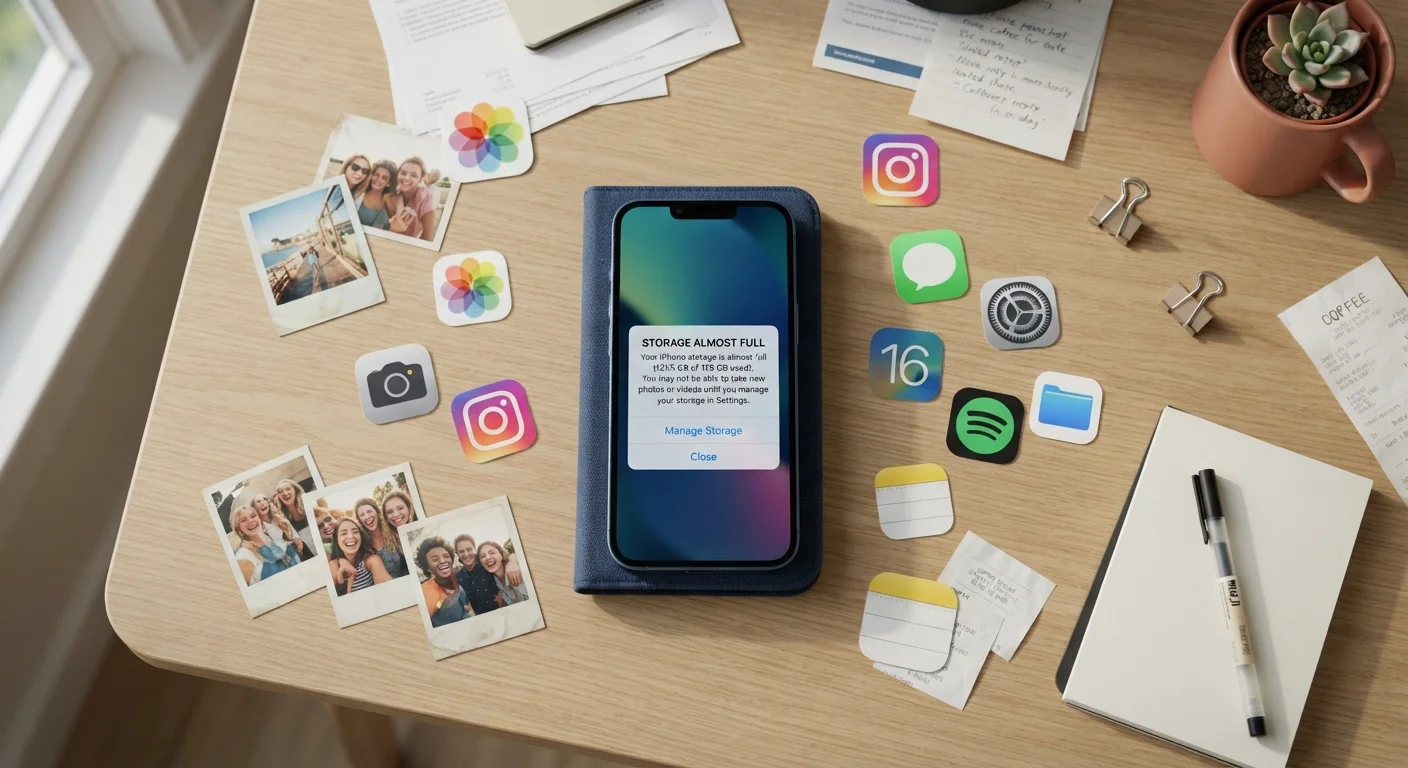
Photos, apps, cache, and system files all compete for space. Learn what's actually eating your storage and how to approach each category.
Key takeaways
- Your phone or computer keeps files you never asked for, including app cache, duplicate photos, and old backups.
- The operating system itself uses a significant portion of labeled storage before you install anything.
- Turning on automatic cloud backup does not delete local copies unless you configure it to do so.
- Streaming apps often download content silently in the background to reduce load times.
- Checking storage by category rather than total used space makes it easier to find what to remove.
What 'storage' actually means on your device
When a phone or laptop is labeled 128 GB, that number refers to raw flash memory capacity. What you can actually use is less, sometimes noticeably less. The operating system, pre-installed apps, and system recovery files occupy space before you touch the device. On many Android phones, for example, the system partition alone can consume 10 to 20 GB. iOS reserves a comparable amount. That gap between the number on the box and the space available at first setup is normal, but it surprises many people.
Beyond the system reservation, storage fills through several distinct channels: the files you deliberately save, the files apps create automatically, and the files your device generates to run efficiently. Understanding these categories separately makes it much easier to decide what to remove and what to keep.
Common mistakes that drain storage faster than expected
Assuming cloud backup means files are gone from your device.
Why it happens: Cloud services like iCloud Photos or Google Photos are marketed as backup tools, so it feels logical that syncing removes the local copy.
Ignoring app cache as a storage category.
Why it happens: Cache is invisible to most users because it accumulates in the background without any notification or visible file.
Keeping multiple copies of the same photo without realizing it.
Why it happens: Editing an image creates a new file while preserving the original. Sharing images through multiple apps can also result in duplicates saved to the camera roll.
Leaving downloaded content from streaming apps on the device.
Why it happens: Streaming apps let users download movies or podcasts for offline listening, which is useful during travel but easy to forget afterward.
Not accounting for large message attachments.
Why it happens: Text and messaging apps store every photo, video, and voice memo that passes through them, and that archive grows silently over months or years.
How to take stock of what is actually on your device
Both iOS and Android include a storage breakdown screen in Settings that groups usage by category: apps, photos, system, and other. On a Mac, System Settings > General > Storage shows a similar breakdown with a color-coded bar. Windows users can find equivalent information under Settings > System > Storage, where Storage Sense can also be configured to remove temporary files automatically.
Looking at these screens by category rather than total used is the practical move. A single category showing unexpected size, such as 'Other' or 'System Data' ballooning past 10 GB, often points to a specific fixable cause: accumulated app cache, large message attachments, or a failed software update that left behind a partial download.
Back up before you delete anything
Clearing storage is straightforward, but it is permanent. Photos, contacts, and app data deleted without a backup cannot be recovered from the device itself. Verify that your backup is current and accessible before removing large batches of files or resetting any settings.
Clearing storage does carry one real risk: deleting something you actually wanted. Before removing large files or performing a factory reset, confirm that your photos, documents, and app data are backed up to a location you can access. A backup you cannot retrieve is the same as no backup.
The content on this site is for informational purposes only and is not a substitute for professional advice. Always consult a qualified professional for guidance specific to your situation.