
Setting Up a New Tablet Without the Confusion

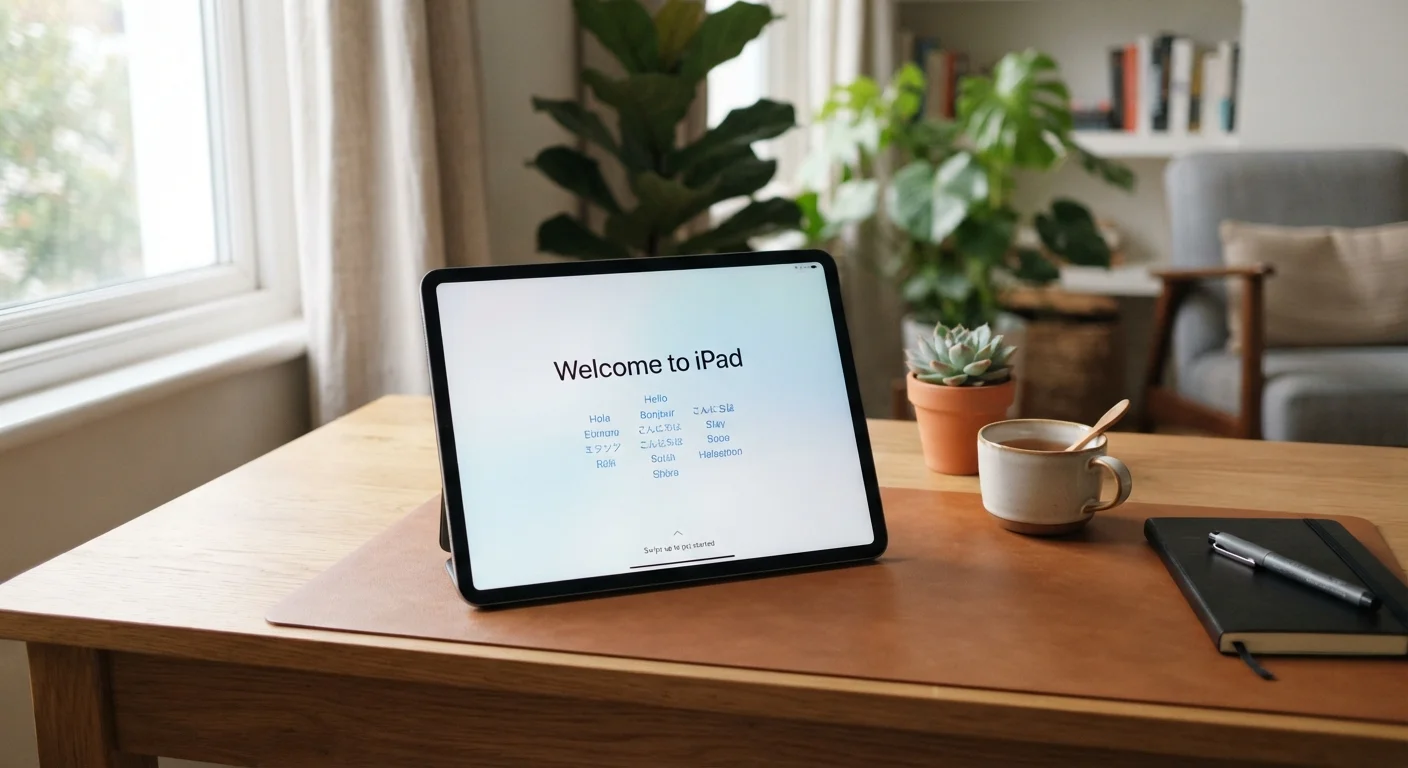
First-time tablet setup can feel overwhelming. This step-by-step walkthrough covers accounts, privacy settings, and the basics you'll actually need.
Key takeaways
- You need a Wi-Fi connection and an email address before you start.
- Creating or signing into an account unlocks the app store and device backups.
- Reviewing privacy settings during setup takes only a few minutes and is worth doing.
- A password manager or simple written record helps you keep track of new logins.
- You can change most settings later if you skip something during initial setup.
What you need before you start
Before you press the power button, collect two things: your Wi-Fi password and an email address. Most people already have both, but it is worth confirming ahead of time so setup does not stall halfway through.
If you have never had a Google or Apple account, you will create one during setup. That account is tied to the app store, device backups, and (on some tablets) your purchase history. It is separate from any social media login.
What you will need
Having these ready typically cuts setup time in half and avoids the frustration of starting over after a dropped connection or forgotten password.
Step-by-step tablet setup
Power on and choose your language and region
Press and hold the power button until the screen lights up. Most tablets walk you through language and region selection first. Pick your language (English for US readers) and select United States as your region. These settings affect date formats, the app store catalog, and system language throughout the device.
Connect to Wi-Fi
The setup process requires an internet connection. Your tablet will scan for nearby networks and list them by name. Tap your home network, type the password carefully (it is case-sensitive), and wait for the checkmark or "Connected" confirmation before moving on.
Sign in or create your account
iPads ask for an Apple ID; Android tablets ask for a Google account. If you already have one, sign in now. If you do not, choose the option to create a new account and follow the prompts. You will need your email address and a password you have not used elsewhere.
This account does two things: it gives you access to the app store, and it backs up your settings and purchases so you can restore them if you ever get a new device.
Set up a screen lock
You will be prompted to set a PIN, password, or biometric lock (fingerprint or face recognition). Choose a PIN of at least six digits or a short password. Biometric options are convenient, but having a backup PIN is required in case they fail.
A screen lock stops anyone who picks up your tablet from accessing your email, photos, or saved passwords.
Review privacy and location settings
After the lock screen, the setup wizard presents a series of permission screens. Common ones include location services, diagnostic data sharing, and personalized ads. Read each one before tapping "Allow" or "Don't Allow."
Location services can be useful for maps and weather apps, but you can grant or revoke that permission per app later in Settings. Diagnostic data sharing sends usage information to the manufacturer; turning it off does not affect device performance.
For a deeper look at what these toggles control, see our beginner's guide to digital privacy.
Install system updates
Once the home screen loads, go to Settings and look for "Software Update" (iPads) or "System Update" (Android). Tablets shipped from a warehouse may be months behind on security patches. Installing updates before you add any apps or accounts closes known security gaps.
Updates can take 10 to 20 minutes. Keep the tablet plugged in during this step so it does not run out of power mid-install.
Add only the apps you need right now
Open the app store (App Store on iPad, Google Play on Android) and install a handful of apps you know you will use, such as a browser, email, and any streaming services you already pay for. Resist the pull to install many apps at once. A cluttered home screen makes the device harder to use and harder to keep secure.
For help organizing accounts and apps as your collection grows, this starter plan for your digital life covers a practical approach.
Once you finish these steps, your tablet is ready for everyday use. For guidance on locking down your social media apps after you install them, check which default settings are worth changing.
A few things people commonly overlook
Back up your tablet from day one
Both iPads and Android tablets can back up automatically to cloud storage when connected to Wi-Fi and charging overnight. Turn this on in Settings under your account name (iPad) or "Backup" (Android). If your tablet is ever lost or replaced, a recent backup means your apps, contacts, and settings restore in minutes rather than starting from scratch.
Screen time limits are built into both iPads and Android tablets under Settings. If you share the device with a child or want to set your own usage boundaries, this is where to find those controls.
Automatic app updates are on by default on most tablets. That is generally a good setting to leave enabled, since updates often include security fixes. You can find the toggle under the app store settings if you want to manage updates manually instead.
Storage fills up faster than most people expect. Photos and downloaded videos are the main culprits. Check how much space you have used under Settings any time the device feels sluggish or says storage is nearly full. The Internet and Apps hub has more guidance on managing apps and online tools as your usage grows.
The content on this site is for informational purposes only and is not a substitute for professional advice. Always consult a qualified professional for guidance specific to your situation.