
Bluetooth Range, Drops, and Interference: What's Really Going On

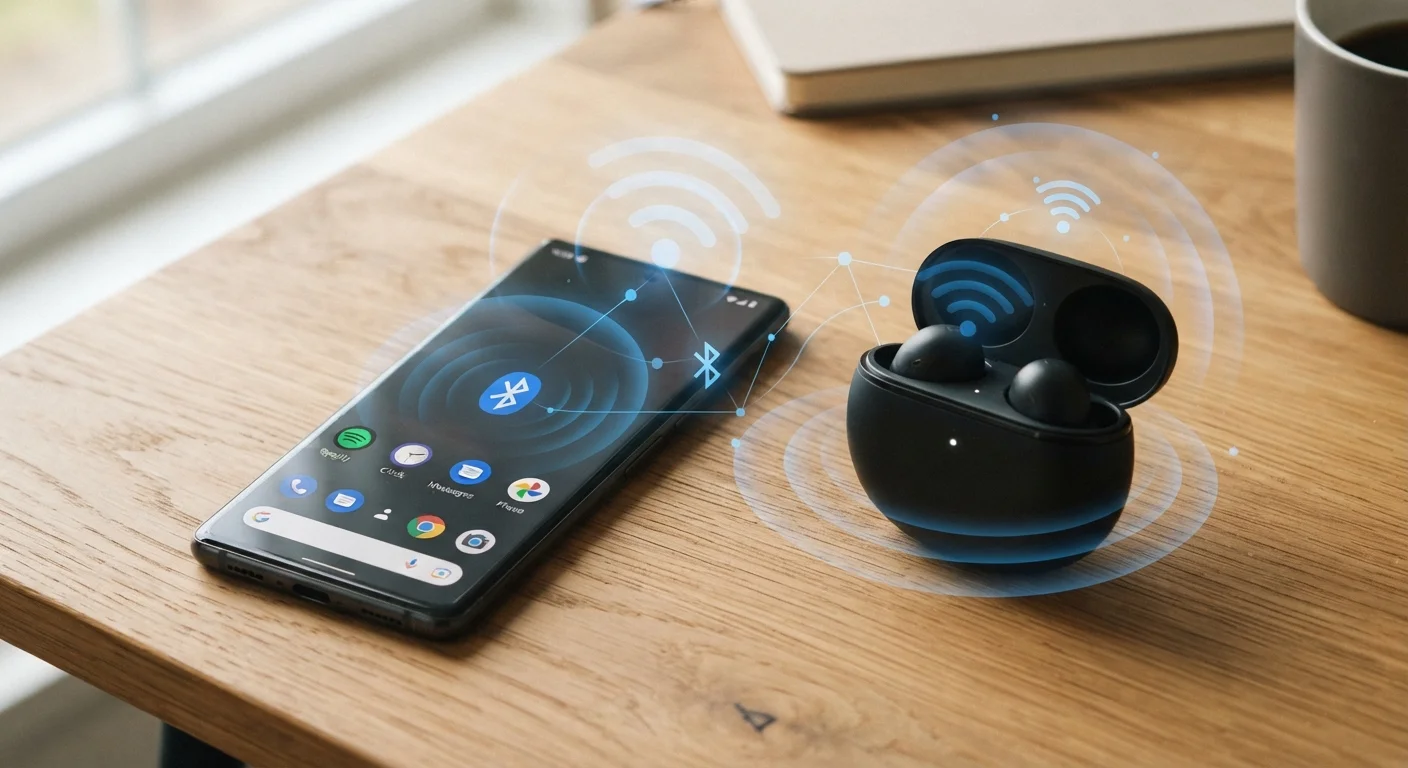
Frustrated by Bluetooth cutting out? This guide explains the physics and practical causes behind range limits and connection drops.
Key takeaways
- Bluetooth uses the 2.4 GHz band, which it shares with Wi-Fi routers, microwaves, and other household devices.
- Physical obstacles like walls, metal appliances, and even the human body absorb and scatter Bluetooth signals.
- Most consumer Bluetooth is rated for about 30 feet (10 meters) of open-air range; real-world range is shorter.
- Connection drops are usually caused by range, obstruction, or competing radio traffic, not a faulty device.
- Simple adjustments, such as repositioning devices or reducing radio clutter, resolve most drop problems.
The radio band at the root of most problems
Bluetooth transmits data using radio waves in the 2.4 GHz frequency band. That same band is used by 2.4 GHz Wi-Fi networks, many baby monitors, some cordless phones, and microwave ovens. When all of these are active in the same space, they compete for the same slice of the radio spectrum.
To manage this crowding, Bluetooth uses a process called frequency-hopping spread spectrum. Rather than staying on one channel, a Bluetooth connection jumps between 79 different channels dozens of times per second. This reduces the chance that any single interfering signal can block an entire conversation between devices.
Even so, a crowded radio environment still causes problems. When a kitchen has a Wi-Fi router, a microwave, and two Bluetooth speakers all active at the same time, the frequency-hopping has fewer clean channels to land on. The connection slows, stutters, or drops. This is not a defect; it is a predictable consequence of sharing a finite radio resource.
Bluetooth versions and range
Newer Bluetooth versions (such as 5.0 and later) advertise greater range and faster speeds than older versions. However, the actual improvement in everyday use depends on both devices supporting the newer version. Connecting a Bluetooth 5.0 phone to a Bluetooth 4.2 speaker means the connection defaults to the older specification. Range and interference behavior are still governed by whichever version is lower.
How physical objects reduce range
Radio waves do not pass through all materials equally. Drywall absorbs some signal; brick and concrete absorb significantly more. Metal reflects radio waves rather than absorbing them, which can create dead spots or unpredictable bouncing. Even the human body, which is largely water, absorbs 2.4 GHz signals well enough to degrade a Bluetooth connection.
The stated range for most consumer Bluetooth devices is roughly 30 feet (about 10 meters) in open air. That figure assumes a clear, unobstructed path. In a typical home or office, with walls, furniture, and people in between, effective range shrinks. Moving two rooms away from a paired speaker often crosses that practical threshold even if the physical distance looks short on a floor plan.
Placement matters more than many people realize. A phone sitting on a desk with a clear line to a Bluetooth speaker performs better than the same phone buried under a laptop bag in a drawer. If drops happen regularly at a specific location, repositioning one or both devices by even a few feet can change the result noticeably.
~30 ft
Nominal open-air range for Class 2 Bluetooth
Class 2 Bluetooth, used in most consumer earbuds and speakers, has a rated range of approximately 10 meters (33 feet) under ideal, obstacle-free conditions.
79
Frequency channels Bluetooth hops across
The Bluetooth specification defines 79 channels in the 2.4 GHz band that a connection cycles through to avoid sustained interference from other radio sources.
2.4 GHz
Shared radio band used by Bluetooth and Wi-Fi
Bluetooth and 2.4 GHz Wi-Fi operate on the same frequency band, meaning both compete for available radio space in any home or office with both active.
Why connection drops happen in patterns
Bluetooth drops that follow a predictable pattern usually have a physical explanation. Drops that happen every time you walk into the kitchen point to microwave or router interference. Drops that happen when your phone goes into a front jeans pocket but not a jacket pocket are almost certainly caused by your body absorbing the signal. Drops that occur at a specific time of day may correlate with a neighbor's router or another device on a schedule.
One less obvious cause is device memory. Phones and tablets store a list of previously paired Bluetooth devices, and some of those devices periodically broadcast a signal looking to reconnect. If several old headphones, speakers, or car systems are all trying to grab your phone's attention simultaneously, the phone's Bluetooth radio can become briefly overwhelmed, causing a stutter or drop on your active connection.
Clearing out unused paired devices from your phone's Bluetooth settings is a simple maintenance step that reduces this background noise. It does not fix range or obstruction problems, but it removes one avoidable source of competition.
Practical steps that actually help
For most drop problems, a short checklist covers the common causes. First, check distance: if the connected devices are more than 20 feet apart with any walls in between, move closer. Second, check for competing radios: if your router broadcasts on 2.4 GHz and your Bluetooth drops happen most while streaming video, switching the router or your phone's Wi-Fi connection to 5 GHz removes the overlap. Your router's settings page or your internet provider's app is typically where that change is made.
Third, check what is between the devices physically. A metal filing cabinet, a large aquarium, or even a thick concrete pillar between your phone and your earbuds can reduce signal enough to cause drops. Repositioning so the path is more open often solves the problem without any settings change.
If drops happen specifically on audio devices, it is worth checking whether the device firmware is up to date. Manufacturers occasionally release updates that improve how the device handles congested radio environments. The update process varies by manufacturer, so checking the device's companion app or the manufacturer's support page is the right starting point.
For a related look at how wireless technology affects charging, see how wireless charging works and its trade-offs. If wireless network interference is affecting other parts of your home, why Wi-Fi slows down at night covers the broader picture of home radio congestion.
Frequently Asked Questions
The content on this site is for informational purposes only and is not a substitute for professional advice. Always consult a qualified professional for guidance specific to your situation.