
USB-A, USB-C, and Everything in Between: A Plain-Language Reference

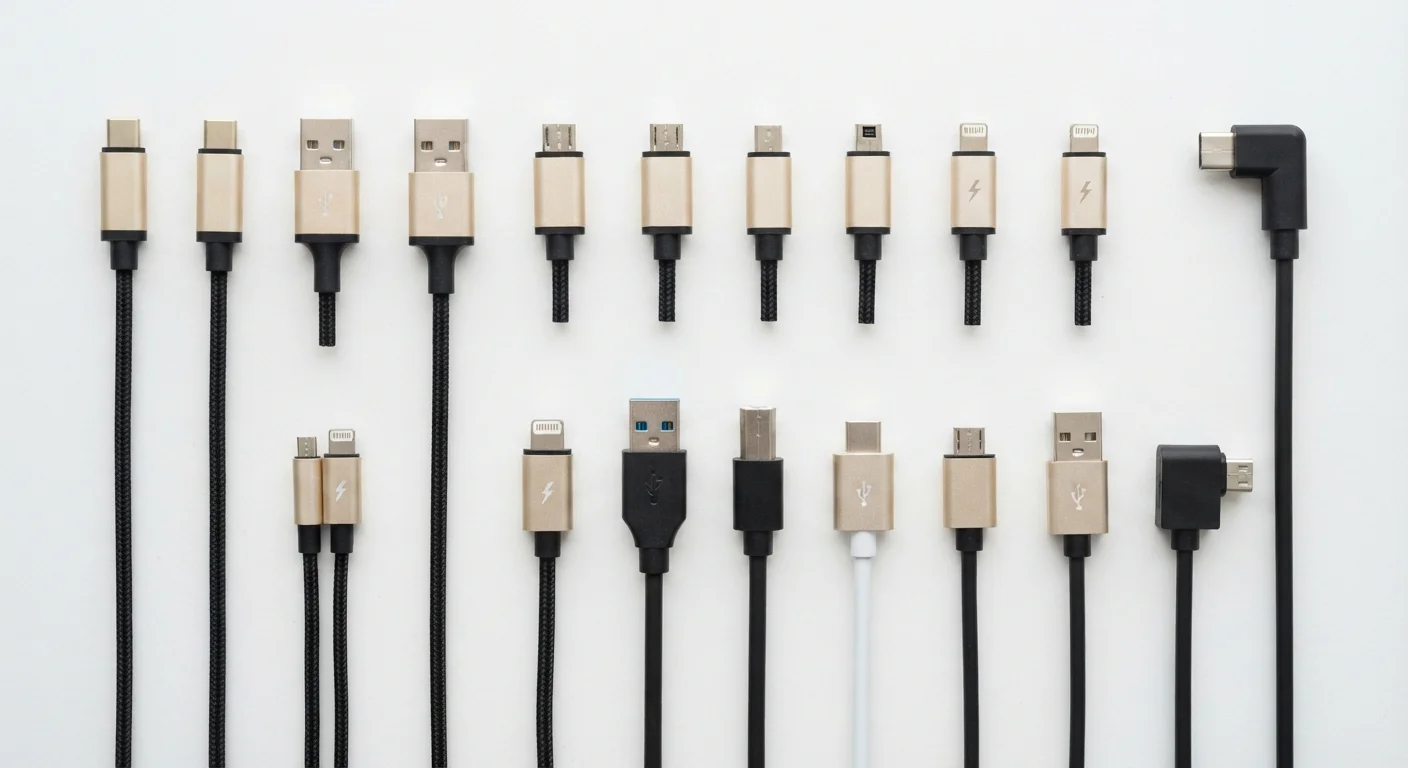
A quick-reference guide to USB connector types, what they support, and how to tell them apart without needing an engineering degree.
Why USB is confusing (and why it does not have to be)
USB stands for Universal Serial Bus, and the name was always a little optimistic. There is nothing especially universal about a standard that has produced at least half a dozen connector shapes over thirty years, each with its own rules about what it can and cannot do.
The confusion usually hits when you open a box and find a cable that does not fit your device, or when you buy a charger and realize it charges slowly even though the ports look identical. The shape of a USB connector tells you one thing; the version of USB inside it tells you another. Both matter.
USB
Universal Serial Bus, a standard for connecting devices to computers and chargers. It covers both the physical connector and the protocol that governs how data and power move between devices.
USB Power Delivery (PD)
A charging standard that allows USB-C ports to negotiate higher power levels with compatible devices. It is what enables a single USB-C charger to safely charge both a phone and a laptop.
Thunderbolt
A high-speed connection protocol developed by Intel that runs over USB-C connectors. It supports faster data transfer and video output than standard USB-C, and is identified by a lightning bolt icon on the port.
Data transfer rate
How fast a USB connection can move files between two devices, measured in megabits or gigabits per second. This is set by the USB version in the cable and ports, not the connector shape.
Insertion cycle
One complete plug-in and unplug of a connector. Connectors are rated for a certain number of insertion cycles before the connection becomes unreliable; USB-C is rated higher than Micro-USB.
This reference covers the connector types most adults encounter today, what each one supports, and how to tell them apart at a glance. If you are traveling and packing cables, the travel gear categories overview has broader context on tech accessories worth bringing.
The connector types and what they look like
USB-A is the rectangular plug that has been on computers since the late 1990s. It is wide, flat, and only fits one way (though it can feel like it fits both ways until it does not). Almost every older phone charger, keyboard, flash drive, and mouse uses USB-A on the host end.
USB-B is the square plug with two angled corners at the top. It appears on printers, scanners, and older external hard drives. Most people encounter it rarely today.
Micro-USB is the small, trapezoid-shaped connector that was standard on Android phones and many accessories through the 2010s. It has a flat top and a slightly angled bottom. It is fragile compared to newer connectors and rated for fewer insertion cycles.
Mini-USB is older than Micro-USB and slightly larger. It was common on digital cameras and early MP3 players. If you see one now, the device is likely at least ten years old.
USB-C is the small oval connector that works in either orientation. It is now standard on most new laptops, phones, tablets, and accessories. One USB-C port can carry power, data, or video depending on what the hardware and cable support.
Lightning is Apple's proprietary connector used on iPhones and accessories made before the switch to USB-C. It is small and reversible but not a USB standard. Apple has been moving its product line to USB-C, so newer iPhones use USB-C rather than Lightning.
USB versions: what the numbers actually mean
| USB 2.0 max data speed | 480 Mbps (USB Implementers Forum specification) |
| USB 3.2 Gen 2x2 max data speed | 20 Gbps (USB Implementers Forum specification) |
| USB 4 max data speed | 40 Gbps (USB Implementers Forum specification) |
| USB-C connector orientation | Reversible (fits either way) |
| Standard USB-A charging wattage | Typically 5W |
| USB-C Power Delivery max wattage | Up to 240W (USB PD 3.1) (USB Implementers Forum specification) |
Connector shape and USB version are separate things. A USB-A port can be USB 2.0 (slow) or USB 3.2 (fast). A USB-C port can be USB 2.0 speed in a cheap cable or USB 4 speed in a good one. You cannot tell the version from the shape alone.
USB 2.0 transfers data at up to 480 megabits per second. That is adequate for keyboards, mice, and flash drives but slow for moving large video files. USB 3.x versions (3.0, 3.1, 3.2) range from 5 gigabits to 20 gigabits per second. USB 4 tops out at 40 gigabits per second and is only available on USB-C connectors.
USB-C ports that support Thunderbolt (a separate Intel-developed protocol carried over USB-C) can reach 40 gigabits per second as well and also support external displays. Not every USB-C port is a Thunderbolt port; the Thunderbolt logo (a small lightning bolt) distinguishes them.
Charging speed and power delivery
USB charging speed depends on the charger, the cable, and the device, all three together. A USB-A charger from a few years ago likely delivers 5 watts. A modern USB-C charger with Power Delivery (PD) can deliver 18, 45, 65, or even 100 watts or more, depending on the model.
A USB-C cable that only supports USB 2.0 speeds may still carry high wattage for charging, because power delivery and data speed are governed separately. However, a cheap cable without the right internal wiring can limit charging to a lower wattage even when you plug it into a powerful charger. Cable quality matters more with USB-C than it did with older connectors.
If your device supports fast charging, check what standard it uses. Some devices use USB Power Delivery; others use proprietary protocols from their manufacturer. The wall adapter that came with the device is usually the safest and most reliable charger for it, though a third-party charger that explicitly supports the same standard can work as well.
For questions about warranties covering accessories or cables, the device warranties guide explains what manufacturer coverage typically includes. More guides on apps, connectivity, and online tools are available through the Internet and Apps section.
The content on this site is for informational purposes only and is not a substitute for professional advice. Always consult a qualified professional for guidance specific to your situation.