
Organising Your Digital Life: A Starter Plan for Apps, Accounts, and Passwords

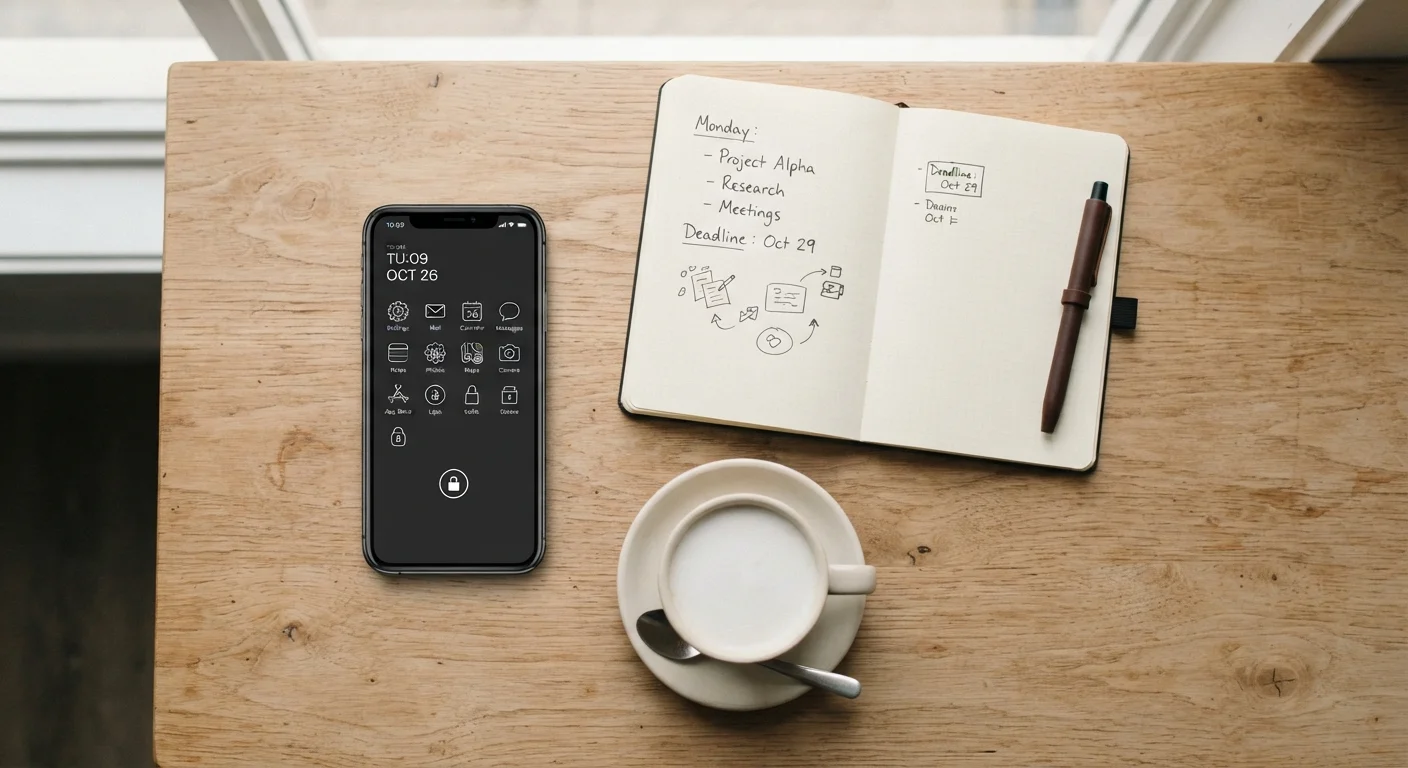
Feeling buried in apps and forgotten logins? A practical framework for bringing order to your online accounts and daily tools.
Start here
Why digital clutter is worth tackling
Next
Taking stock: your apps and accounts
Then
Getting passwords under control
After that
Reducing noise from notifications and subscriptions
Finally
Building a simple routine that sticks
Key takeaways
- A simple audit of your apps and accounts takes less than an hour and reveals a lot.
- Password managers remove the need to memorise dozens of logins without sacrificing security.
- Subscription costs and notification overload are easier to fix once you can see them clearly.
- A brief monthly check-in keeps digital clutter from building back up.
Why digital clutter is worth tackling
Most people don't set out to accumulate 80 apps and 200 forgotten logins. It happens gradually: a new service here, a free trial there, a work tool that followed you home. Before long, finding the right app or remembering which password goes where becomes a small but persistent drain on your day.
Digital clutter has real costs. Forgotten subscriptions charge your card quietly every month. Weak or reused passwords on abandoned accounts create exposure if any one of those services is breached. And a phone full of apps you never open is just noise that competes for your attention.
The good news is that one focused session is enough to get a clear picture, and the habits that keep things tidy afterward are genuinely light. This guide walks through each step in plain terms.
Taking stock: your apps and accounts
The first step is a simple inventory. On your phone, go to your app library (not just your home screen) and scroll through everything installed. For each app, ask two questions: have you opened it in the past month, and do you need it in the next month? If the answer to both is no, delete it.
For accounts, your email inbox is the most practical starting point. Search for 'welcome', 'confirm your email', or 'verify your account'. The results give you a working list of services you've joined. Write them down or paste them into a plain text file, which becomes your account inventory.
Password manager
An app that stores and organises all your login credentials in an encrypted vault, so you only need to remember one master password.
Two-factor authentication (2FA)
A login method that requires a second step, such as a code sent to your phone, in addition to your password. It makes unauthorised access much harder even if your password is exposed.
Data breach
When a company's stored user information, including usernames and passwords, is accessed without authorisation and potentially exposed or stolen.
Account inventory
A personal list of every online account you've created, used to track what exists and decide what to keep, close, or secure.
Subscription creep
The gradual accumulation of small recurring charges from apps or services you signed up for but rarely or never use.
Once you have a list, sort accounts into three groups: active and needed, active but unused, and uncertain. Ones in the second group are worth closing. Dormant accounts can still be caught in data breaches, so removing them is a genuine security step, not just tidying. For the uncertain ones, log in once, check whether there's anything worth keeping, and then decide.
For a broader look at where your files and data live across services, this comparison of cloud and local storage explains the difference clearly.
Getting passwords under control
Password problems fall into two patterns: reusing the same password across many sites, or creating unique ones and then forgetting them. A password manager solves both.
A password manager stores your logins in an encrypted vault. You create one strong master password to unlock it, and the manager handles the rest, generating unique passwords for each site and filling them in automatically. You stop memorising dozens of credentials and stop reusing passwords out of necessity.
If you want to understand what makes a password genuinely strong, this practical guide to strong passwords covers techniques that work for everyday people without requiring a technical background.
Two other habits belong alongside a password manager. First, enable two-factor authentication (2FA) on any account that offers it, especially email and banking. 2FA means that even if your password is exposed, a second step (usually a code sent to your phone) is required to log in. Second, use a separate email address for low-trust sign-ups and shopping, which limits the damage if that address is sold to spammers. For a fuller picture of account security, these account security habits are worth reading next.
Reducing noise from notifications and subscriptions
Two things quietly degrade the usefulness of your phone: too many notifications and subscriptions you've forgotten about.
Notifications are worth auditing after you've trimmed your apps. On both Android and iPhone, you can review which apps have permission to send notifications and turn off any that aren't genuinely useful. The goal isn't to silence everything; it's to make sure the alerts that do come through actually matter. This guide to managing notifications walks through the process step by step.
For subscriptions, open your bank or credit card statement and look at recurring charges. Cross-reference them with your app list and with subscriptions managed through your phone's app store (both Apple and Google have a section in their store settings that lists active subscriptions). If you find charges for services you don't use, cancel them. This subscription audit checklist is a practical tool for finding what's slipping through.
A quick subscription check takes two minutes
On iPhone, go to Settings, tap your name, then Subscriptions. On Android, open the Google Play Store, tap your profile icon, then Payments and subscriptions. Both views show what you're currently paying for through those stores. Check your bank statement separately for any subscriptions billed directly.
Building a simple routine that sticks
One audit session gets you organised. A short monthly check-in keeps you there.
Each month, spend a few minutes scanning your bank statement for new recurring charges, deleting any apps you haven't opened, and checking whether any accounts need closing. That's the core of it. Some people find it helpful to link this to something they already do monthly, like reviewing a budget or paying bills.
For privacy-related checks, this beginner's guide to digital privacy covers what to watch for beyond passwords and apps. And if device security feels like a gap, this guide to keeping your devices secure covers the habits that matter most without requiring technical knowledge.
Starting from scratch can feel like a lot. Break it into sessions: apps one day, accounts another, passwords a third. Each step is independent, so you don't need to finish everything at once to get value from it.
Frequently Asked Questions
The content on this site is for informational purposes only and is not a substitute for professional advice. Always consult a qualified professional for guidance specific to your situation.