
Notifications Out of Control: Practical Ways to Reclaim Your Attention

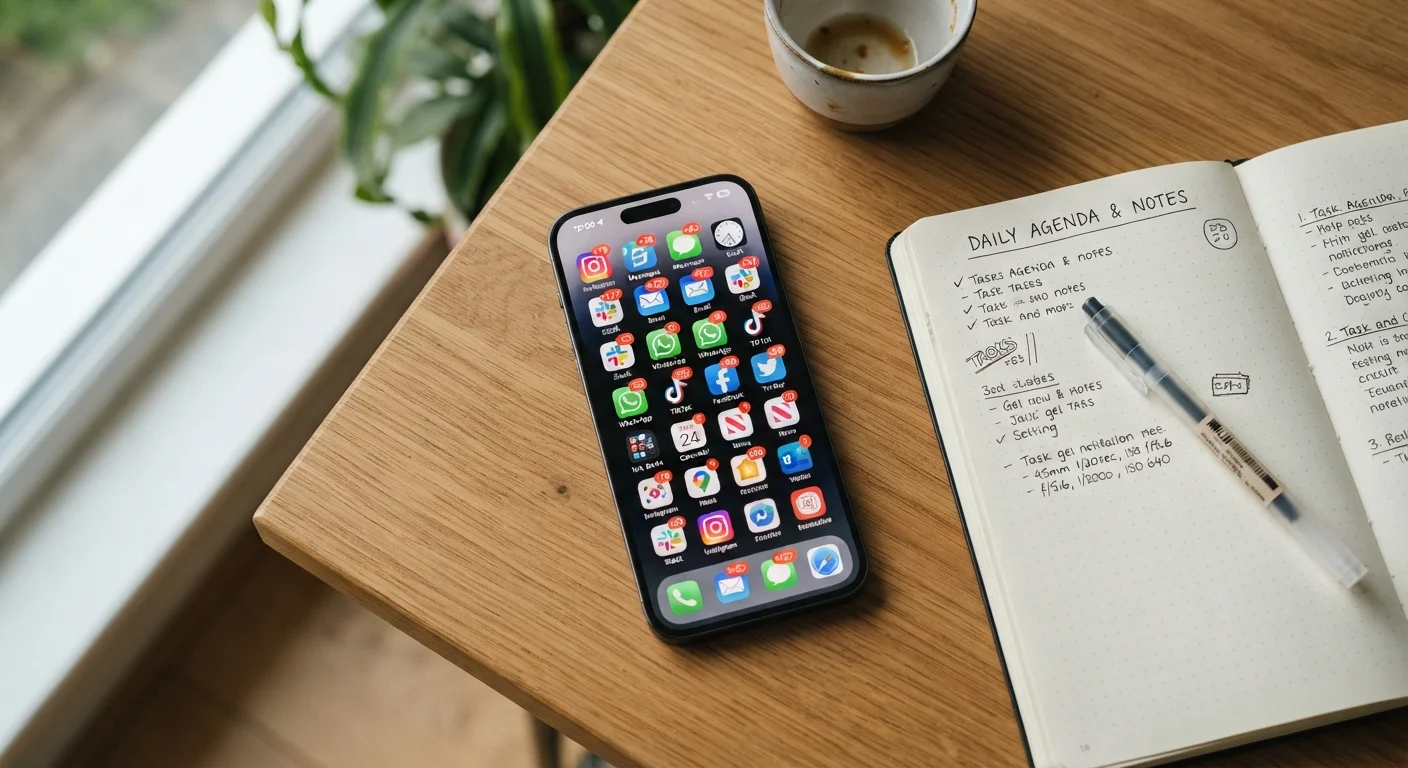
Constant pings from apps fragment your focus. Learn how to audit, filter, and configure notifications so your phone works for you.
Key takeaways
- Most apps request notification access by default, but few actually need it to be useful.
- A one-time audit of your notification settings can cut interruptions significantly without losing important alerts.
- Scheduled delivery and focus modes let you receive notifications on your terms, not the app's.
- Turning off badge counts and lock-screen previews reduces distraction even when your phone is nearby.
- Grouping notifications by app prevents a single active thread from burying everything else.
Why notifications fragment your focus more than you think
Every ping, badge, and banner competes for a slice of your attention. The problem is not just the moment of interruption itself. Research from the University of California, Irvine has found that it can take more than 20 minutes to fully return to a task after an interruption, and notifications are among the most common causes. Even a phone sitting face-up on a desk with the sound off can pull cognitive attention away from the work in front of you.
Most people have dozens of apps installed, and the majority of those apps ship with notifications turned on by default. That default exists because engagement is valuable to the app maker, not because you need every update in real time. Recognising that distinction is the first step toward taking back control.
If you have ever felt that your phone uses you more than you use it, the notification settings panel is where that starts to change. See what researchers say about screen overload for a broader look at how constant digital demands affect mental load.
How to audit every app that can interrupt you
Both Android and iOS give you a single screen that lists every app with notification access. On an iPhone, go to Settings > Notifications. On Android, the path varies slightly by manufacturer, but Settings > Notifications > App notifications is standard on most devices. Scroll through the full list before changing anything. Many people are surprised by what they find.
Sort mentally into three buckets as you scroll: apps that must reach you immediately (phone, messages from close contacts, banking alerts), apps where a daily summary is enough (news, social media, email newsletters), and apps that have no reason to ever interrupt you (games, retail, entertainment). The third group is usually larger than expected, and turning those off entirely is the quickest win available.
For apps in the middle bucket, look at whether you can switch from banners to badges only, or from lock-screen display to notification-center-only. These smaller adjustments preserve the information without the interruption. For a broader pass through your phone's settings, these privacy settings are worth reviewing at the same time.
Practical ways to configure what gets through
Turn off all notifications for any app you check on your own schedule.
Social media, news, and entertainment apps do not send time-sensitive information. Allowing them to interrupt you creates urgency that does not exist. Checking them when you choose preserves the information without the cost to your attention.
Use badge counts only for apps where the number genuinely matters.
A badge showing 47 unread emails on your home screen creates a persistent visual stressor. Hiding badge counts for high-volume apps removes that pull without hiding the app itself.
Allow only calls and time-sensitive alerts to break through a focus mode.
Focus modes work only if their exceptions list is short. The more apps you allow through, the closer you get to having no filter at all.
Set notification sounds to silent for everything except genuine emergencies.
Sound is the most disruptive form of notification because it interrupts regardless of what you are doing. Vibration and visual badges can convey the same information with less cost to concentration.
Review and tighten notification permissions immediately after installing any new app.
New installs are the most common way notification creep restarts. Addressing permissions at install time costs one minute and prevents weeks of unwanted interruptions.
One setting that often gets overlooked is notification grouping. When a group chat or news app sends 40 messages in an hour, each one can surface individually in your notification shade. Enabling grouping by app collapses all of those into a single stack, so one tap reveals them when you are ready rather than 40 separate interruptions throughout the day.
Lock-screen previews deserve separate attention. If your phone shows the first line of messages on the lock screen, anyone nearby can read them. Switching previews to "When Unlocked" or disabling them entirely solves a small privacy issue and removes a visual pull toward checking your phone every time it lights up. For more on what apps can access about you, background app tracking is worth understanding alongside notification behavior.
Using focus modes and scheduled delivery
Both major mobile platforms now include focus modes that filter which apps and contacts can send notifications during a set time window. iOS calls this Focus; Android calls it Modes (on Pixel and similar devices) or Do Not Disturb with app exceptions. The concept is the same: you define a time or context, then choose which alerts still get through.
A practical setup for most people is a work focus that silences everything except calls from specific contacts and calendar reminders, and a personal focus during late evening that silences work email and productivity apps. You do not need elaborate configurations. Two or three simple rules cover the majority of unwanted interruptions.
Scheduled notification delivery, available in iOS under each app's notification settings, holds that app's alerts until a time you choose, such as 9 AM and 5 PM. For apps like news or newsletters, scheduled delivery means you check on your own schedule rather than reacting every time something publishes. Pairing this with a cleaner app organisation overall helps. A starter plan for organising your digital life covers that side of things in more detail.
Maintaining the system once you set it up
Notification settings drift over time. When you install a new app, it asks for permission and many people tap Allow without thinking. Setting a reminder to revisit your notification list every two or three months takes about ten minutes and prevents the slow creep back toward chaos.
When an app asks for notification access during setup, pause before tapping Allow. Ask whether this app has ever needed to interrupt you immediately in the past. If the answer is no, deny the permission. You can always grant it later from settings if you change your mind, but you cannot undo months of accumulated alerts with a single tap. The same deliberate approach applies when auditing your installed apps more broadly. Reviewing which apps are still earning their place on your phone is a natural companion to this kind of maintenance.
The content on this site is for informational purposes only and is not a substitute for professional advice. Always consult a qualified professional for guidance specific to your situation.