
Cloud Storage Versus Local Storage: Where Your Files Actually Live

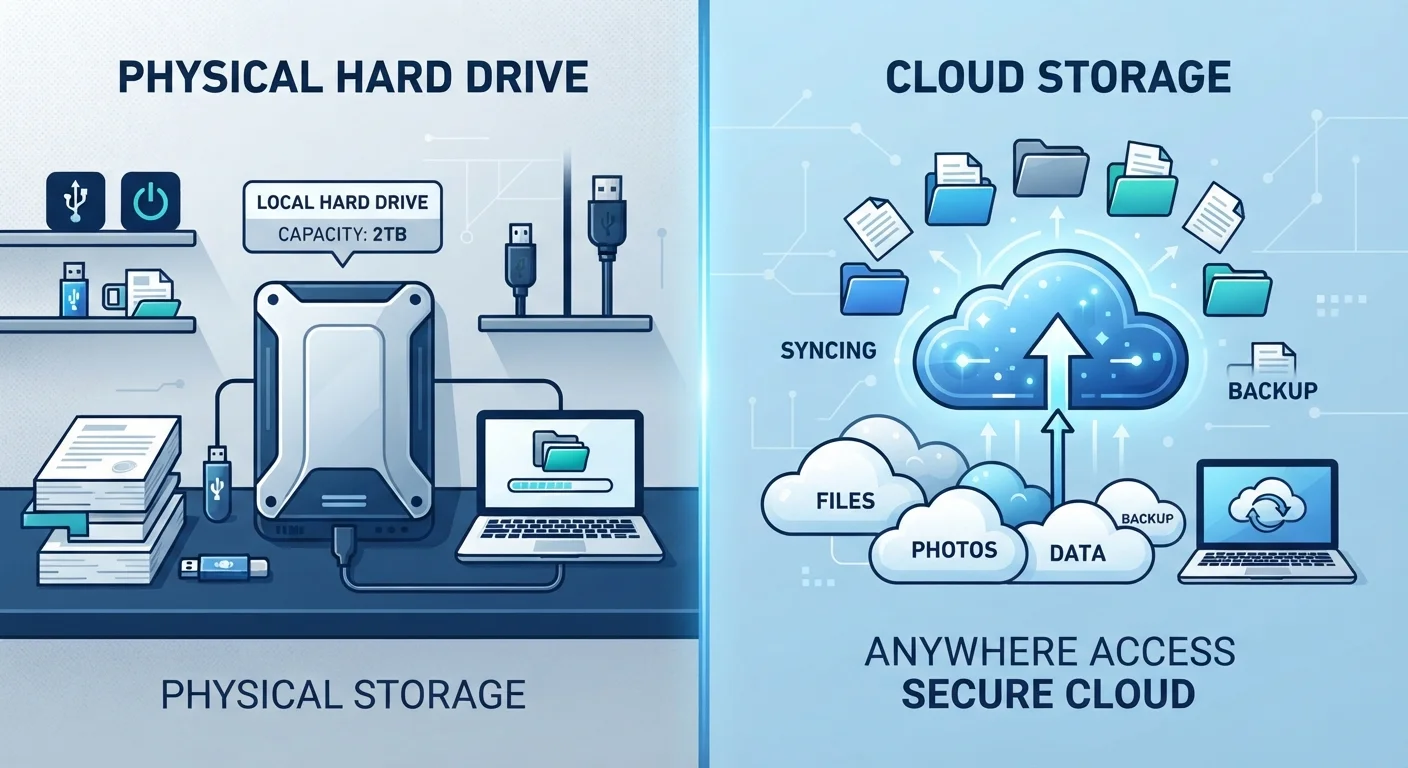
A clear comparison of cloud and local storage: how each works, what happens when things go wrong, and how to choose what suits you.
Option A
Cloud storage
The anywhere-access, subscription-based approach.
Best for: People who want files available on multiple devices or need to share with others without cables or transfers.
Option B
Local storage
The physical, on-device approach you control directly.
Best for: People who need large amounts of storage without ongoing fees and want access that does not depend on an internet connection.
Key takeaways
- Cloud storage keeps files on remote servers you access over the internet; local storage keeps them on physical hardware you own.
- Cloud storage requires an active internet connection to upload, sync, or retrieve files from another device.
- Local storage fails permanently if the hardware breaks and there is no backup copy elsewhere.
- Many people use both approaches together to get the advantages of each.
- Cost structures differ: cloud storage often charges monthly, while local hardware is a one-time purchase that eventually ages out.
How each storage type actually works
When you save a file to local storage, it writes to physical hardware: the built-in drive inside your phone or laptop, or an external drive you plug in. That hardware holds the data whether or not you have internet access. The file goes nowhere and needs nothing from a network to open.
Cloud storage works differently. When you save or sync a file, it uploads to a server operated by a third-party company and stores it there. What remains on your device is usually either a cached copy or a small reference file. When you open the document later, your device fetches the current version from the server. That round-trip requires an internet connection. For more on how apps interact with device storage, see how web and native apps handle storage differently.
| Criterion | Cloud storage | Local storage |
|---|---|---|
| Where files live | Remote servers, accessed online | Physical hardware you own |
| Internet required | Yes, to sync or access remotely | No |
| Capacity cost | Monthly or annual subscription | One-time hardware purchase |
| Risk of total loss | Account closure, breach, or company shutdown | Hardware failure, theft, or physical damage |
| Multi-device access | Built in, automatic | Manual transfer or cable required |
| Privacy control | Files handled by third party | Files stay in your possession |
| Deleted-file recovery | Often available within a time window | Rarely possible once trash is emptied |
What happens when things go wrong
Local storage has one serious vulnerability: the hardware itself. A dropped hard drive, a flooded laptop, or a failed SSD can make files permanently unrecoverable. There is no remote copy to fall back on unless you deliberately made one. Physical drives also have a finite lifespan, and they can fail silently without obvious warning.
Cloud storage shifts that risk. Because files live on remote servers, a broken or stolen device does not destroy the data. However, cloud services carry their own failure modes. A company could shut down, raise prices beyond what you are willing to pay, or experience a data breach. Your account can also be locked if you forget credentials or get flagged by the provider. For a practical approach to keeping accounts organized and secure, the digital life starter plan covers passwords and account management in plain terms.
Both storage types can lose data through accidental deletion. Deleting a file locally and emptying the trash is final. Most cloud services keep a deleted-file history for a limited window, which can save you, but that window eventually closes.
Cost and capacity: the real numbers
A 1-terabyte external hard drive is a one-time purchase. A 1-terabyte cloud plan is a recurring subscription. Over two or three years, the subscription total often exceeds the hardware cost by a wide margin, especially if you need several terabytes. If your storage needs are large and stable, local hardware can be the more economical path over time.
Cloud subscriptions, however, come with flexibility. You can scale up or down, and you are not managing aging hardware. If a drive dies, you do not lose the data. For people with modest storage needs, a free or low-tier cloud plan may cover everything without any purchase at all.
Device storage that fills up also creates a separate kind of cost: slowdowns, failed app updates, and photos that will not save. Understanding what eats device storage can help you figure out whether you genuinely need more space or just need to clear what is already there.
~2 TB
Average consumer external drive capacity
Consumer-grade external hard drives commonly sold at retail commonly offer 1 to 4 terabytes, with 2 TB representing a typical mid-range option.
15 GB
Free cloud storage from major providers
Several large cloud platforms offer around 15 gigabytes of free storage per account before a paid tier is required.
3-2-1
Widely cited backup rule
The 3-2-1 backup principle, cited by data recovery professionals, recommends three copies of data on two different media types with one stored off-site.
Privacy and control
With local storage, you physically possess the drive. No company has routine access to the contents. This matters to people storing sensitive documents, confidential work files, or anything they do not want transmitted over a network.
Cloud storage means your files pass through and reside on someone else's infrastructure. Reputable providers encrypt data in transit and at rest, but the provider still controls the servers. Terms of service, law enforcement requests, and account suspensions are all real scenarios to consider. Encryption helps, but it does not eliminate the fact that the files are off your property.
Internet connection quality also shapes the cloud experience. Uploading a large file over a slow connection takes time, and syncing across devices consumes data. If you are on a metered plan, that usage adds up. Choosing between mobile data and Wi-Fi covers when each connection type makes sense, which is directly relevant to how smoothly cloud sync works day to day.
The 3-2-1 backup rule, simplified
A widely used data protection approach suggests keeping three copies of any file you cannot afford to lose: two on different local media (such as your laptop and an external drive) and one stored somewhere else entirely, such as a cloud service. This way, no single failure wipes everything out. You do not need specialized software to follow this principle: a habit of copying important files in two places plus a cloud sync covers the basics.
The content on this site is for informational purposes only and is not a substitute for professional advice. Always consult a qualified professional for guidance specific to your situation.